Docker from Zero to Real-World: A Practical Developer Guide
This guide is for developers who want to truly understand Docker — not just run commands, but know why it exists, how it works internally, and how it is used in real projects.
Published on 8 jan 2026
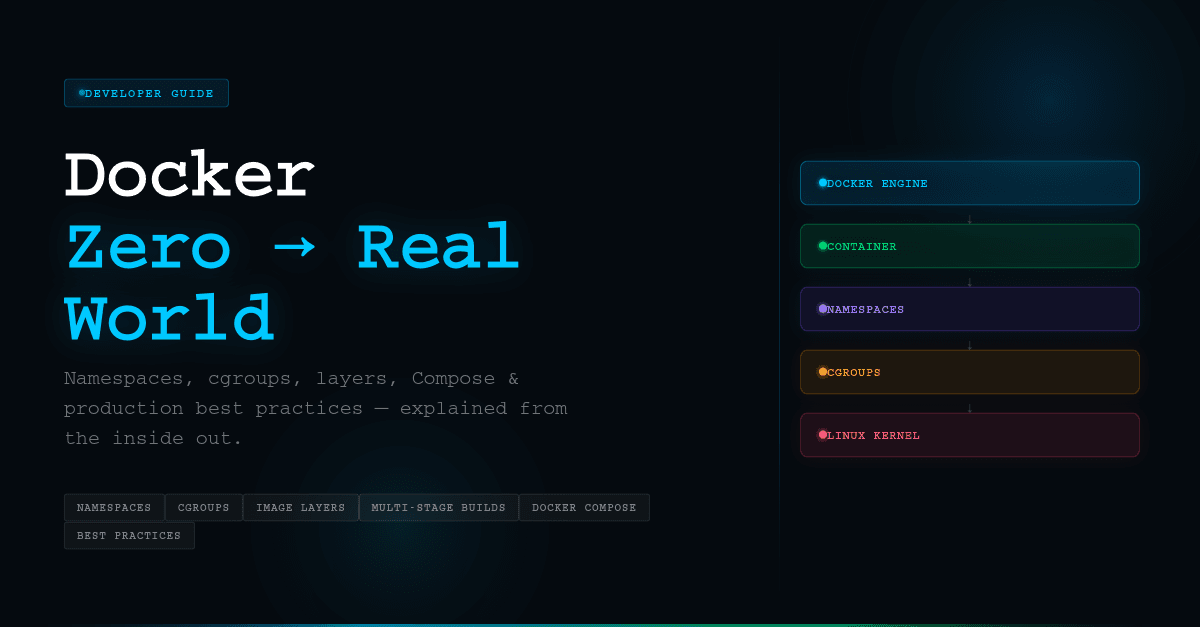
Table of Contents▶
- 1. The Real Problems Docker Solves
- 2. Life Before Docker
- 3. Which Problems Does Docker Actually Solve?
- 4. What Docker Really Is
- 5. How Docker Solves These Problems
- 6. What Docker Is Not
- 7. Why Docker Became the Foundation of Modern Cloud
- 8. How Docker Works Internally: Namespaces
- 9. How Docker Works Internally: cgroups
- 10. Namespaces + cgroups Together
- 11. Architecture: From Kernel to Docker
- 12. What Actually Happens When You Run `docker run nginx`
- 13. Building a Simple Node Server with Docker
- 14. Docker Image Layers Explained
- 15. `docker build` and Its Key Flags
- 16. `docker run` and Its Key Flags
- 17. Working with Running Containers: `exec`, `logs`, `inspect`
- 18. Dev vs Production Docker Environments
- 19. Avoiding Rebuilds in Local Development (Bind Mounts)
- 20. Docker Compose
- 21. Hot Reload and Migrations with Docker Compose
- 22. Docker Best Practices
- Use minimal, official base images
- Use multi-stage builds
- Optimize layer caching
- Use `.dockerignore`
- Never bake secrets into images
- Don't run containers as root
- Use volumes for data, not container layers
- One process per container
- Make containers configurable via environment variables
- Log to stdout/stderr
- Use explicit image tags
- Clean up after package installs
- Scan images for vulnerabilities
- Treat containers as disposable
title: 'Docker from Zero to Real-World: A Practical Developer Guide' description: 'This guide is for developers who want to truly understand Docker — not just run commands, but know why it exists, how it works internally, and how it is used in real projects.' date: '2026-01-08' cover: '/docker/cover.png' toc: true
1. The Real Problems Docker Solves
Before Docker, building software was not just about writing code. It was about fighting environments.
Applications behaved differently on different machines. A project that worked perfectly on a developer's laptop would fail on a teammate's system or break completely in production. Teams spent more time fixing setup issues than building features.
Docker did not change how we write code. Docker changed how we run, ship, and reproduce code.
This article explains:
- The real development and production problems teams faced
- Which of those problems Docker actually solves
- How Docker solves them under the hood
- Why Docker became the foundation of modern cloud systems
2. Life Before Docker
2.1 Development Problems
2.1.1 "It works on my machine"
The most famous line in software engineering.
Works on Developer A's laptop
Fails on Developer B's laptop
Completely breaks in QA
Different OS, different Node versions, different system libraries, different paths. The code is the same. The environment is not.
2.1.2 Environment mismatch everywhere
Dev uses Node 22
QA uses Node 18
Production uses Node 16
One machine has OpenSSL 1, another has OpenSSL 3. One machine has Python, another doesn't. Small differences lead to unpredictable bugs.
2.1.3 Painful project setup
A new developer joins the team. They receive a README:
- Install Node
- Install MongoDB
- Install Redis
- Install Kafka
- Install Nginx
- Install build tools
- Configure environment variables
- Match OS libraries
One missed step and the app fails. Onboarding takes days.
2.1.4 Dependency conflicts
Project A needs Node 14.
Project B needs Node 22.

Project C needs Python 3.8.
Project D needs Python 3.12.

Global installations clash.
System becomes fragile.
2.1.5 Hard-to-reproduce bugs
A bug happens only on staging. Another happens only on production. Another happens only on one developer's system. Because environments are not identical, bugs are not reproducible — and unreproducible bugs are the hardest to fix.
2.2 Production Problems
2.2.1 Inconsistent deployments
Production servers are often created manually. Someone installs packages, someone forgets a step, someone patches directly. Each server becomes unique, with no guarantee that two production machines are really the same.
2.2.2 Slow and risky releases
When a new release breaks production, rollback means reinstalling packages, reconfiguring services, and hoping nothing else breaks. Releases become stressful events.
2.2.3 Scaling is painful
Your app works fine for 100 users. Now traffic grows and you need 5 more servers — each one set up again from scratch: OS, runtime, libraries, app, configuration. Slow, manual, error-prone.
2.2.4 Poor isolation
Multiple apps on one server means one app leaking memory or spiking CPU can slow everything down. There are no clean boundaries.
2.2.5 CI/CD instability
Your pipeline says "works in CI but fails in production" because CI, dev, and prod machines are all different.
3. Which Problems Does Docker Actually Solve?
Docker does not fix:
- Bad code
- Poor architecture
- Slow algorithms
Docker fixes something more fundamental: environment inconsistency.
Docker solves:
- ✅ Environment mismatch
- ✅ "Works on my machine"
- ✅ Complex setup
- ✅ Dependency conflicts
- ✅ Inconsistent deployments
- ✅ Reproducibility
- ✅ CI/CD instability
- ✅ Isolation problems
- ✅ Reliable scaling
Docker doesn't fix bad software. Docker fixes broken environments.
4. What Docker Really Is
Docker is a platform to:
Package an application with everything it needs to run into a single, reproducible unit called an image.
That image contains:
- Your code
- Runtime (Node, Python, Java, etc.)
- System libraries
- OS-level dependencies
- Startup command
From that image, Docker runs containers — running instances of an image with isolated processes, filesystem, and networking.
5. How Docker Solves These Problems
5.1 Same environment everywhere
With Docker, you don't ship source code alone — you ship an image. That image becomes the single source of truth. Developer, QA, CI, and production all run the same image. No more hidden differences. No more "works on my machine."
5.2 Dependency isolation
Each container has its own filesystem, libraries, runtime, and processes. Your laptop can run a Node 14 app, a Node 22 app, and a Python 3.8 app simultaneously — without conflicts — because containers don't share environments.
5.3 One-command setup
Instead of installing 10 tools and configuring 20 things, you write:
docker compose up
Docker downloads images, databases, queues, and services and starts everything. A new developer becomes productive in minutes.
5.4 Reproducible builds with Dockerfile
A Dockerfile is executable documentation:
FROM node:22
WORKDIR /app
COPY package*.json .
RUN npm install
COPY . .
CMD ["node", "server.js"]
This file guarantees the base OS, Node version, dependency installation, and startup command. Anyone building it gets the same system.
5.5 Reliable deployments
Traditional deployment: "Configure this server."
Docker deployment: "Run this image."
docker run -d -p 80:3000 myapp:1.0
The same artifact tested in development is promoted to production. No environment drift. Rollback means running an older image.
5.6 Simple scaling
Need 10 servers? Run the same image 10 times. Containers start fast, are lightweight, and are identical. This is why systems like Kubernetes exist — to orchestrate Docker containers at scale.
5.7 Isolation and safer servers
Containers provide process, filesystem, network, and resource isolation. One crashing app does not crash others. CPU and RAM can be controlled. Security boundaries are improved.
6. What Docker Is Not
Docker is not:
- ❌ A virtual machine
- ❌ A performance booster
- ❌ A replacement for good architecture
- ❌ A magic bug fixer
Docker is:
- ✅ A packaging system
- ✅ An environment standardization tool
- ✅ A deployment foundation
- ✅ A reproducibility engine
7. Why Docker Became the Foundation of Modern Cloud
Modern systems depend on microservices, CI/CD pipelines, auto-scaling, blue-green deployments, Kubernetes, and cloud platforms. All of them assume one thing:
Your application can be started anywhere in a predictable way.
Docker made that possible. It turned servers into a commodity, turned environments into code, and turned deployments into a technical problem instead of a manual one.
8. How Docker Works Internally: Namespaces
Docker works because of two core Linux kernel features: Namespaces and Control Groups (cgroups).
Namespaces provide isolation. They make a process think it is alone on the system. Each namespace wraps a global system resource and presents it as private, so a process inside a namespace believes it has its own computer, processes, network, and filesystem — even though it's sharing the same Linux kernel.
Without namespaces
ps aux
# Shows ALL system processes — no isolation
With namespaces (inside a container)
ps aux
# Shows only container processes
Same kernel. Different view of reality.
Types of namespaces Docker uses
| Namespace | Isolates |
|---|---|
| PID | Each container has its own process tree and thinks its first process is PID 1 |
| NET | Each container gets its own network interfaces, IP address, ports, and routing table |
| MNT | Each container has its own root filesystem and mount points |
| UTS | Each container has its own hostname and domain name |
| IPC | Separates shared memory, semaphores, and message queues |
| USER | Maps container users to different host users (container root ≠ real root) |
Namespaces answer: "What can this process see?"
9. How Docker Works Internally: cgroups
cgroups (Control Groups) provide resource control. They control how much a process can use — not what it can see.
Without cgroups, one app could use all CPU, eat all memory, and bring the entire server down. With cgroups, the Linux kernel enforces hard limits:
docker run --memory="512m" --cpus="1" myapp
This container cannot exceed 512 MB RAM or 1 CPU core. If memory exceeds the limit, the container is killed. If CPU exceeds the limit, it is throttled.
cgroups can control CPU, memory, disk I/O, network bandwidth, and number of processes.
cgroups answer: "How much can this process use?"
10. Namespaces + cgroups Together
Containers are just normal Linux processes. Docker starts a process with multiple namespaces for isolation and cgroups for limits.
| Feature | Provided by |
|---|---|
| Process isolation | Namespaces |
| Filesystem isolation | Namespaces |
| Network isolation | Namespaces |
| Hostname isolation | Namespaces |
| User isolation | Namespaces |
| CPU limits | cgroups |
| Memory limits | cgroups |
| Disk I/O limits | cgroups |
Docker = Namespaces + cgroups + filesystem layers + tooling.
Docker containers are not virtual machines. They are normal Linux processes started with special kernel features. Namespaces give containers their own isolated view of the system. cgroups limit how much CPU, memory, and I/O those processes can consume. Together, they make a process look like a separate machine while still sharing the same kernel.
11. Architecture: From Kernel to Docker
Think of Docker not as a "thing", but as a stack built on the Linux kernel:
Hardware
   ↓
Host Operating System
   ↓
Linux Kernel
   ↓
Namespaces  → isolation (what a process can see)
cgroups     → limits (what a process can use)
   ↓
Container (isolated + controlled process)
   ↓
Docker Engine (builds, runs, manages containers)
Docker does not ship its own kernel. All containers on a machine share the same kernel, scheduler, memory manager, and drivers. This is why containers are lightweight, fast to start, and not virtual machines.
A container, internally, is:
Container = Process + Namespaces + cgroups + Root filesystem
The Docker Engine talks to the Linux kernel, creates namespaces, configures cgroups, sets up networking, mounts filesystems, downloads images, and starts processes — making containers usable for humans.
12. What Actually Happens When You Run docker run nginx
Step 1 — CLI to daemon
Your command does not start containers directly. It sends a REST API request to dockerd (the Docker daemon).
Step 2 — Image lookup
Docker checks locally for the nginx image. If not found, it contacts Docker Hub, pulls the image, downloads all layers, verifies hashes, and stores them locally.
Step 3 — Container environment setup
Before starting nginx, Docker prepares:
a) Namespaces — new PID, NET, MNT, UTS, IPC, and user namespaces so nginx thinks it runs on its own system.
b) cgroups — memory, CPU, and process limits. Even without explicit limits, Docker still creates a cgroup.
c) Filesystem — Docker builds a root filesystem using read-only image layers with a thin writable layer on top.
d) Networking — Docker creates a virtual Ethernet pair, connects the container to the docker0 bridge, assigns a private IP, and sets up NAT rules.
Step 4 — Process startup
Docker calls something similar to clone() + namespaces + cgroups + chroot() and starts nginx -g 'daemon off;' as PID 1 inside the container.
From the kernel's point of view: it is just another process. From nginx's point of view: it is the whole machine.
When you run
docker run nginx, Docker doesn't start a virtual machine. It creates Linux namespaces, applies cgroup limits, mounts an image filesystem, configures networking, and starts nginx as a normal Linux process inside that isolated environment.
13. Building a Simple Node Server with Docker
The application
server.js
const http = require('http');

const server = http.createServer((req, res) => {
  res.end('Hello from Docker 🚀');
});

server.listen(3000, () => {
  console.log('Server running on port 3000');
});
package.json
{
  "name": "simple-docker-node",
  "version": "1.0.0",
  "main": "server.js",
  "scripts": {
    "start": "node server.js"
  }
}
The naive Dockerfile (and why it's slow)
FROM node:22
COPY . .
RUN npm install
CMD ["npm", "start"]
The problem: every time you change server.js, even a comment, Docker sees that COPY . . changed, breaks the cache, and re-runs npm install — even though dependencies didn't change.
The optimized Dockerfile (real-world standard)
FROM node:22

WORKDIR /app

COPY package*.json ./

RUN npm install

COPY . .

CMD ["npm", "start"]
Why this works:
FROM node:22— creates the base image layerWORKDIR /app— sets the working directory; all subsequent commands are scoped hereCOPY package*.json ./— copies onlypackage.jsonandpackage-lock.json(a small, stable layer)RUN npm install— this layer is cached as long aspackage.jsondoesn't changeCOPY . .— copies application source code (changes frequently, but only rebuilds this layer)CMD ["npm", "start"]— metadata only; runs when the container starts
Because dependencies change rarely and source code changes often, Docker reuses the heavy node_modules layer and only rebuilds the final layers.
Running it
docker build -t simple-node .
docker run -p 3000:3000 simple-node
Open http://localhost:3000.
During
docker build, every instruction creates a new immutable layer. By copying onlypackage.jsonbefore runningnpm install, we allow Docker to cache the dependency layer. When only application code changes, Docker reuses the dependency layer and rebuilds only the final layers, making builds dramatically faster.
14. Docker Image Layers Explained
A Docker image is not one big file — it is a stack of immutable filesystem layers.
Image = Layer 1 + Layer 2 + Layer 3 + ... + Metadata
Each layer is a filesystem diff: only the files added, changed, or deleted compared to the previous layer.
How layers are combined (OverlayFS)
Docker uses OverlayFS (a union filesystem) to merge layers into one virtual filesystem:
Container writable layer  ← writes go here
─────────────────────────
App code layer
─────────────────────────
node_modules layer
─────────────────────────
package.json layer
─────────────────────────
Node base image
─────────────────────────
Linux base filesystem
To your app, this looks like one normal filesystem. Physically, it is many stacked layers.
The writable container layer
Images are read-only. When a container starts, Docker adds a thin writable layer on top. Any file the app writes goes only into this layer — lower image layers are never changed. This is why images are reusable, containers are disposable, and deleting a container removes all its changes (unless volumes are used).
Copy-on-write
If a lower layer has /app/config.json and the container modifies it, Docker copies it up into the writable layer and modifies it there. Lower layers remain untouched.
Whiteout files
Deleting a file in a container creates a special whiteout marker that tells OverlayFS to hide the file from lower layers. The file still exists physically but becomes invisible.
Why layers are powerful
- Caching — unchanged layers are reused on every build
- Sharing — 10 images using
FROM node:22store the base layer only once - Fast pulls — Docker only downloads missing layers
A Docker image is a stack of immutable layers where each layer stores only the diff from the previous one. OverlayFS merges them into a single virtual filesystem. A thin writable container layer sits on top, and copy-on-write ensures the original image remains perfectly reusable and unchanged.
15. docker build and Its Key Flags
docker build [OPTIONS] PATH
-t — tag the image
docker build -t my-node-app .
docker build -t my-node-app:1.0 .
docker build -t myuser/node-app:latest .
Without -t, Docker assigns a random SHA256 ID. -t adds a human-readable alias in name:tag format (defaulting to latest if no tag is given).
--no-cache — rebuild from scratch
docker build --no-cache -t my-app .
By default, Docker reuses cached layers when nothing has changed. --no-cache forces Docker to re-execute every instruction and recreate every layer from scratch — useful for dependency corruption, OS package updates, security rebuilds, or debugging.
Other useful flags
| Flag | Purpose |
|---|---|
-f Dockerfile.prod | Use a specific Dockerfile |
--build-arg NODE_ENV=production | Pass variables into the Dockerfile |
--progress=plain | Show full build logs (useful for CI debugging) |
--pull | Always re-download the latest base image |
--target production | Build only a specific stage in a multi-stage Dockerfile |
Common examples:
# Normal fast build
docker build -t node-app .

# Clean rebuild
docker build --no-cache -t node-app .

# Production build
docker build -f Dockerfile.prod --pull --no-cache -t node-app:prod .
16. docker run and Its Key Flags
docker run [OPTIONS] IMAGE [COMMAND]
When you run docker run node-app, Docker creates a new container, adds a writable layer, sets up namespaces and cgroups, configures networking, and executes the default CMD.
Most important flags
| Flag | Meaning |
|---|---|
-p 3000:3000 | Map host port → container port |
-d | Run in background (detached) |
-it | Interactive terminal (-i keeps STDIN open, -t allocates a pseudo-TTY) |
--rm | Auto-delete container when it stops |
--name my-node | Assign a readable name |
-v $(pwd):/app | Bind mount local folder into container |
-e NODE_ENV=production | Set environment variable |
--memory="512m" | Limit RAM (enforced by cgroups) |
--cpus="1" | Limit CPU cores (enforced by cgroups) |
--network my-net | Attach to a Docker network |
Common examples
# Run a web app in the background
docker run -d --name web -p 3000:3000 node-app

# Open an interactive debug shell
docker run -it --rm node-app sh

# Run in dev mode with live code
docker run -it -p 3000:3000 -v $(pwd):/app node-app
docker rundoes much more than start a program. It creates a container, attaches a writable layer, configures Linux namespaces for isolation, applies cgroups for resource limits, sets up networking, and executes the startup command. Every container is just a controlled Linux process.
17. Working with Running Containers: exec, logs, inspect
Once a container is running, you need to enter it, observe it, and inspect it.
docker exec — Run a command inside a running container
docker exec [OPTIONS] CONTAINER COMMAND
exec does not create a new container or restart it. It attaches a new process to the existing container's namespaces, sharing the same filesystem, network, and PID space.
# Open an interactive shell
docker exec -it my-node sh

# Run as root for permission debugging
docker exec -u root -it my-node sh

# Run one-off commands
docker exec my-node ls /app
docker exec my-node ps aux
docker exec my-node env
When to use: debugging, checking files, running migrations, live troubleshooting.
docker logs — View container output
docker logs [OPTIONS] CONTAINER
Shows everything written to stdout and stderr. Docker only captures console.log() and similar — if your app writes to a file, Docker won't see it.
docker logs my-node              # show all logs
docker logs -f my-node           # follow live (like tail -f)
docker logs --since=10m my-node  # last 10 minutes
docker logs --tail=100 my-node   # last 100 lines
When to use: app crashes, server not responding, CI debugging, production monitoring.
docker inspect — Deep metadata
docker inspect CONTAINER | IMAGE | VOLUME | NETWORK
Returns a large JSON object from the Docker engine's internal database, including IP address, mount points, environment variables, command, volumes, resource limits, and network config.
Extract specific fields with -f:
docker inspect -f '{{.NetworkSettings.IPAddress}}' my-node
docker inspect -f '{{.Config.Image}}' my-node
docker inspect -f '{{.Mounts}}' my-node
docker inspect -f '{{.State.Pid}}' my-node
docker inspect -f '{{.HostConfig.Memory}}' my-node
When to use: getting container IP, verifying mounts, debugging env vars, checking resource limits, CI/CD validation.
How the three commands work together
docker ps                   # Is it running?
docker logs my-node         # What is it doing?
docker exec -it my-node sh  # What does it see?
docker inspect my-node      # How was it started?
| Command | Purpose |
|---|---|
docker exec | Run commands inside a running container |
docker logs | See what the app printed |
docker inspect | See what Docker knows about the container |
18. Dev vs Production Docker Environments
A frontend application has two very different lives.
Development: hot reload, source code mounted, large image with dev tools, fast feedback.
Production: prebuilt static files, no Node, small secure image served by Nginx.
Recommended project structure
frontend-app/
├── src/
├── public/
├── package.json
├── package-lock.json
├── Dockerfile.dev
├── Dockerfile.prod
├── docker-compose.dev.yml
└── docker-compose.prod.yml
Development (Dockerfile.dev)
FROM node:22

WORKDIR /app

COPY package*.json ./
RUN npm install

EXPOSE 5173

CMD ["npm", "run", "dev"]
docker-compose.dev.yml
services:
  frontend:
    build:
      context: .
      dockerfile: Dockerfile.dev
    ports:
      - '5173:5173'
    volumes:
      - .:/app
      - /app/node_modules
Local code is mounted via volumes so changes reflect instantly — no rebuild needed.
Production (Dockerfile.prod — multi-stage)
# Stage 1: Build FROM node:22 AS builder WORKDIR /app COPY package*.json ./ RUN npm install COPY . . RUN npm run build # Stage 2: Serve FROM nginx:alpine COPY /app/dist /usr/share/nginx/html EXPOSE 80 CMD ["nginx", "-g", "daemon off;"]
The build stage compiles the app. The production stage uses only the static output — no source code, no node_modules, no Node.js. The result is a tiny, fast, secure image.
docker-compose.prod.yml
services:
  frontend:
    build:
      context: .
      dockerfile: Dockerfile.prod
    ports:
      - '80:80'
Running each environment
# Development
docker compose -f docker-compose.dev.yml up --build

# Production
docker compose -f docker-compose.prod.yml up --build -d
| Development | Production | |
|---|---|---|
| Base image | Node | Nginx |
| Reload | Hot reload | Prebuilt static files |
| Volumes | Mounted | None |
| Image size | Large | Very small |
| Contents | Source code | Only dist/ |
Frontend apps have two completely different lifecycles. Separating development and production Docker configurations and using multi-stage builds gives you a fast developer experience and small, secure production images.
19. Avoiding Rebuilds in Local Development (Bind Mounts)
By default, changing code means rebuilding the image, re-copying files, reinstalling dependencies, and restarting everything. Volumes (bind mounts) eliminate this.
Bind mount
-v $(pwd):/app
Your current folder is directly mounted inside /app in the container. Edit a file locally — the container sees it instantly. No rebuild. No copy. No image change.
The node_modules bookmark trick
docker run -it \
  -p 5173:5173 \
  -v $(pwd):/app \
  -v /app/node_modules \
  node-dev-image
The second -v /app/node_modules creates a Docker-managed volume at that path. This prevents your local node_modules (which may have Mac/Windows binaries) from overriding the container's Linux-built modules.
- Code → from local machine
node_modules→ from container image
docker-compose.yml equivalent:
services:
  frontend:
    build: .
    ports:
      - '5173:5173'
    volumes:
      - .:/app
      - /app/node_modules
After the first docker build, you only need docker compose up. Code changes reflect instantly with no rebuild.
In local development, bind mounts map the local project directory directly into the container so file changes are visible instantly. A volume bookmark for
node_moduleskeeps container-installed dependencies intact while source code is loaded from the host.
20. Docker Compose
Docker Compose defines and runs multi-container applications using a single docker-compose.yml file.
Instead of managing many docker run commands, you describe your entire system in one file and start everything with:
docker compose up
Example: Node + MongoDB
version: '3.9'

services:
  api:
    build: .
    ports:
      - '3000:3000'
    depends_on:
      - mongo

  mongo:
    image: mongo:7
    ports:
      - '27017:27017'
    volumes:
      - mongo_data:/data/db

volumes:
  mongo_data:
docker compose up --build   # start everything
docker compose down         # stop and remove
What Compose gives you
- Multi-container orchestration — backend, DB, cache, workers all together
- Service name DNS — your Node app connects to Mongo using
mongodb://mongo:27017(no IP needed) - One-command workflow —
up,down,logs,ps - Perfect for dev and CI — local environments, integration testing, microservices
Dockerfile vs Docker Compose
| Dockerfile | Docker Compose | |
|---|---|---|
| Purpose | Builds one image | Runs many containers |
| Scope | App-level | System-level |
| Command | docker build | docker compose up |
Dockerfile = how to build one container. Docker Compose = how to run many containers together.
Pointing to a custom Dockerfile in Compose
services:
  api:
    build:
      context: .
      dockerfile: Dockerfile.dev
For multi-stage builds:
services:
  api:
    build:
      context: .
      dockerfile: Dockerfile
      target: production
Essential Docker Compose commands
# Lifecycle
docker compose up               # start all services
docker compose up -d            # start in background
docker compose up --build       # force rebuild images
docker compose stop             # stop (keep containers)
docker compose down             # stop and remove containers
docker compose down -v          # also remove volumes (⚠️ deletes data)

# Build
docker compose build
docker compose build --no-cache

# Observe
docker compose ps
docker compose logs
docker compose logs -f api      # follow one service

# Execute
docker compose exec api sh      # shell into running container
docker compose run --rm api npm test  # one-time command

# Utilities
docker compose config           # validate and print merged config
docker compose pull             # pull latest images
docker compose top              # list processes
21. Hot Reload and Migrations with Docker Compose
Hot reload (Node.js)
Hot reload requires a bind mount plus a file watcher like nodemon.
Dockerfile.dev
FROM node:22

WORKDIR /app

COPY package*.json ./
RUN npm install

CMD ["npm", "run", "dev"]
package.json
"scripts": {
  "dev": "nodemon src/index.js"
}
docker-compose.yml
services:
  api:
    build:
      context: .
      dockerfile: Dockerfile.dev
    ports:
      - '3000:3000'
    volumes:
      - .:/app
      - /app/node_modules
    environment:
      - NODE_ENV=development
docker compose up --build
Edit code locally → nodemon detects the change → container restarts automatically. ✅
Migrations
Option A — One-time exec command (most common)
docker compose exec api npm run migrate
The migration runs inside the same Docker network, so the DB hostname works:
postgres://postgres:pass@db:5432/app
Option B — Separate migration service (CI-friendly)
services:
  api:
    build: .
    depends_on:
      - db

  migrate:
    build: .
    command: npm run migrate
    depends_on:
      - db

  db:
    image: postgres:16
docker compose run --rm migrate
Option C — Auto-run on startup (use with caution)
command: sh -c "npm run migrate && npm start"
Not recommended for production unless carefully controlled.
22. Docker Best Practices
These are patterns followed in real production systems.
Use minimal, official base images
# Bad
FROM ubuntu

# Good
FROM node:22-alpine
FROM nginx:alpine
Prefer alpine or slim variants for smaller images, fewer vulnerabilities, and faster pulls.
Use multi-stage builds
FROM node:22 AS builder
# build app

FROM nginx:alpine
# copy only build output
Never ship build tools or source code to production.
Optimize layer caching
COPY package*.json ./
RUN npm install
COPY . .
Always copy dependency files before application code.
Use .dockerignore
node_modules
.git
Dockerfile
docker-compose.yml
.env
dist
Keeps build context small, builds fast, and prevents secrets from leaking into images.
Never bake secrets into images
# ❌ Wrong
ENV DB_PASSWORD=secret123

# ✅ Correct — inject at runtime
docker run -e DB_PASSWORD=secret123 app
Images must be environment-agnostic.
Don't run containers as root
RUN addgroup app && adduser -S app -G app
USER app
Use volumes for data, not container layers
Databases, uploads, and logs should use named volumes — containers are disposable, data must survive restarts.
One process per container
Easier to scale, debug, and orchestrate. One responsibility per container.
Make containers configurable via environment variables
process.env.PORT;
process.env.DB_URL;
Same image can run in dev, test, and production.
Log to stdout/stderr
console.log('server started'); // ✅ Docker captures this
fs.writeFile('app.log'); // ❌ Docker won't see this
Use explicit image tags
# ❌ Unpredictable
FROM node:latest

# ✅ Reproducible
FROM node:22.9-alpine
Clean up after package installs
RUN apt-get update && apt-get install -y curl \
  && rm -rf /var/lib/apt/lists/*
Scan images for vulnerabilities
Use Docker Scout, Trivy, or Snyk to catch OS and library CVEs before they reach production.
Treat containers as disposable
Never design systems that assume containers live forever or that files persist inside containers. Always assume containers will die and restart.
Docker works best when containers are treated as immutable, disposable units. A well-dockerized application uses minimal base images, multi-stage builds, cached dependency layers, and environment-based configuration. Development images are optimized for speed and debugging; production images are optimized for size, security, and performance. Data lives in volumes, secrets live outside images, and containers run as non-root processes. Following these practices turns Docker from a packaging tool into a reliable production foundation.