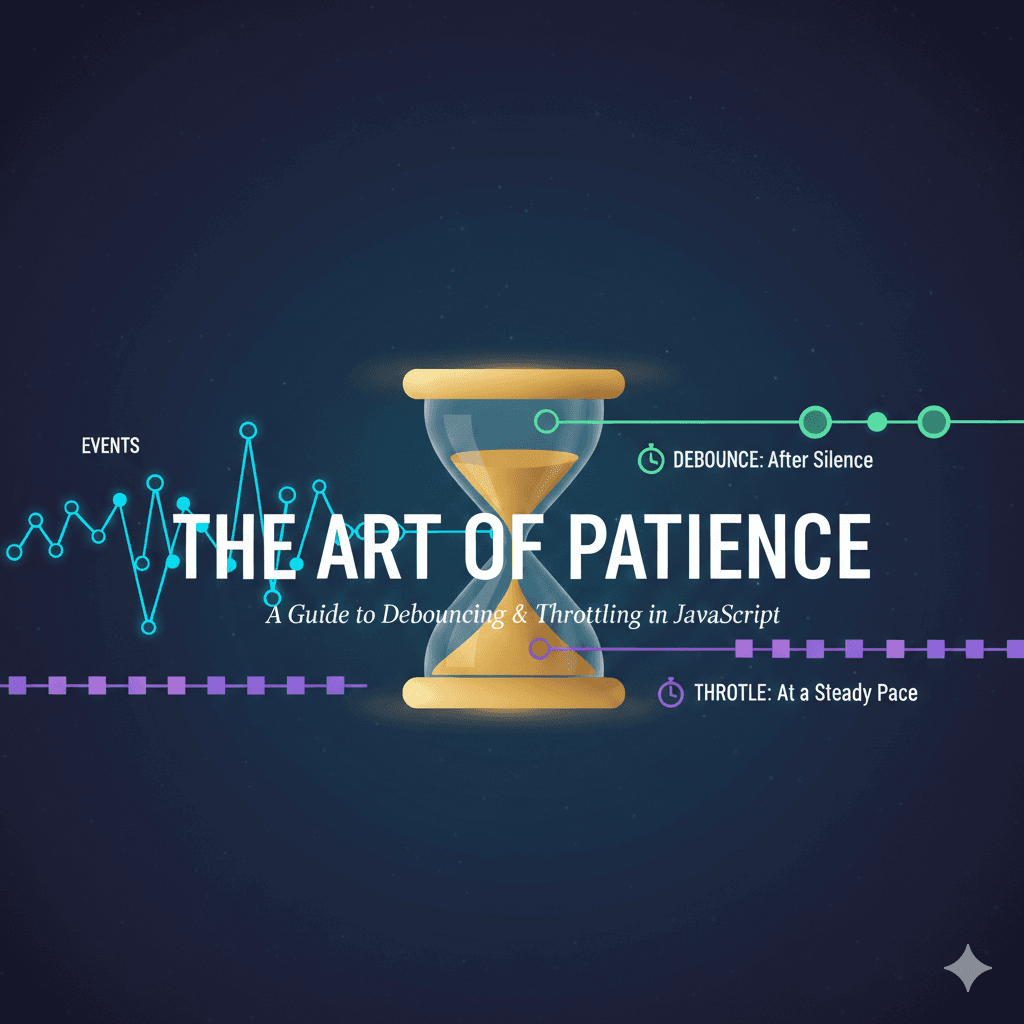
The Art of Patience: A Guide to Debouncing & Throttling in JavaScript
TIn the high-speed world of web development, our applications are constantly bombarded with events. Every keystroke, every mouse wiggle, and every window resize triggers a signal. If your app tries to respond to every single one of these signals instantly, it can quickly become overwhelmed—leading to stuttering interfaces, wasted server resources, and a poor user experience. This is where powerful optimization techniques like Debouncing and Throttling come in.
Published on 18 feb 2026
1. Debouncing: The Art of Waiting for Silence
Debouncing is a programming pattern used to limit the rate at which a function is executed. It ensures that a heavy-duty task—like an API call or a complex UI calculation—only runs after a specific period of "silence" or inactivity.
Think of it like an automatic sliding door at a grocery store. If five people walk through the door one after another, the door doesn't try to close and reopen for every person. Instead, it waits until a few seconds after the last person has passed before it finally swings shut.
1.1 Why Do We Need Debouncing?
Without debouncing, certain user actions can trigger hundreds of function calls per second. Here are three classic "performance killers":
-
Search Autocomplete: If you fetch results from a database on every keystroke, typing "Strawberry" sends 10 separate requests to your server.
-
Form Validation: Validating a field after every character typed can feel sluggish.
-
"Save" Buttons: Preventing accidental multiple form submissions on a fast double-click.
1.3 How Debouncing Works: The Logic
The core logic of a debounce function is simple: Cancel and Reset.
- When the event is triggered, start a timer (e.g., 500ms).
- If the event is triggered again before the timer finishes, kill the old timer and start a new one.
- Only when the timer finally reaches zero without being interrupted do you execute the function.
1.4 The Code (Modern JavaScript)
Here is a sleek, reusable debounce utility:
function debounce(func, delay) {
  let timeoutId;

  return (...args) => {
    // 1. Clear the existing timer
    clearTimeout(timeoutId);

    // 2. Set a new timer
    timeoutId = setTimeout(() => {
      // 3. Execute the function after the delay
      func(...args);
    }, delay);
  };
}
1.5 See Debouncing in Action!
To truly grasp debouncing, try it out yourself. Type rapidly in the input field below, then pause. Notice how the "API call" only fires once you stop typing for a moment.
Status: Idle
2. Throttling: The Art of Regulation
While debouncing waits for silence, Throttling is about regulating execution. It ensures that a function executes at most once within a specified time period, no matter how many times the event is triggered.
When a user drags the corner of their browser window to resize it, the browser fires hundreds of events. If you have a Chart or a Canvas that needs to redraw itself to fit the new size, you should Throttle that redraw. If you use a 150ms throttle, the chart will "step" into its new size smoothly rather than freezing the browser while trying to redraw 100 times a second.
2.1 Why Do We Need Throttling?
Throttling is ideal when you need continuous updates, but not too many updates.
-
scroll Event Handling: Updating a "reading progress" bar or lazy-loading images as a user scrolls. You don't need an update for every pixel scrolled.
-
Mouse Movement Tracking: If you're drawing on a canvas or tracking a user's cursor position.
-
Frequent API Calls (with limits): Ensuring you don't hit a rate limit on an external service when an event (like a game action) fires constantly.
2.2 How Throttling Works: The Logic
-
When the event is triggered, check if a "cooldown" period is active.
-
If it's not active, execute the function immediately and start the cooldown timer.
-
If the cooldown is active, simply ignore subsequent triggers until the cooldown ends.
2.3 The Code (Modern JavaScript)
function throttle(func, limit) {
  let inThrottle;
  let lastFunc;
  let lastRan;

  return function (...args) {
    if (!inThrottle) {
      func(...args); // Execute immediately
      lastRan = Date.now();
      inThrottle = true;
    } else {
      clearTimeout(lastFunc);
      lastFunc = setTimeout(
        () => {
          if (Date.now() - lastRan >= limit) {
            func(...args);
            lastRan = Date.now();
          }
        },
        limit - (Date.now() - lastRan),
      ); // Ensures it fires at the end of the limit
    }
  };
}
2.4 See Throttling in Action!
Observe how, even with continuous input (like holding down a key or moving the mouse), the function is called at a steady, controlled rate.
Throttling Visualizer
Limit: 2 seconds. Click as fast as you can!
Execution Logs
3. Debouncing vs. Throttling
| Feature | Debouncing | Throttling |
|---|---|---|
| One-word Definition | Delay | Limit |
| Core Idea | Waits for inactivity before executing | Executes at fixed time intervals |
| When It Runs | After the user stops triggering events | While the user continues triggering events |
| Best For | Search inputs, form validation | Scroll events, resize events, button spamming |
| Execution Style | Cancels previous calls and resets timer | Ensures execution happens at most once per interval |
| API Calls | Usually reduces to one final call | Calls happen periodically |
| User Experience | Feels intentional and responsive | Feels controlled and rate-limited |
| Example Scenario | Typing in search box | Scrolling a page |
| Behavior Pattern | “Wait for silence” | “Control frequency” |
| Risk Without It | Too many API requests | Performance issues from rapid firing events |